 Restaurant & hotel system tour · Kanom Chan / Kanom Thong Ek
However full the room gets, no order slips through
Kanom POS’s restaurant and hotel system brings every corner of your venue into one place — the cashier counter, your servers’ tablets, the QR code guests order from at the table, and the back office where you watch sales, menus and stock.
Different kind of business? See features for all 7 systems- Orders come from
- Cashier · Tablet · QR
- Payments
- Cash · PromptPay · Transfer
- Service styles
- À la carte · Buffet · Takeaway
- Languages
- Thai / English
- After-sales
- Support for as long as you use it · Monthly consulting
Kanom POS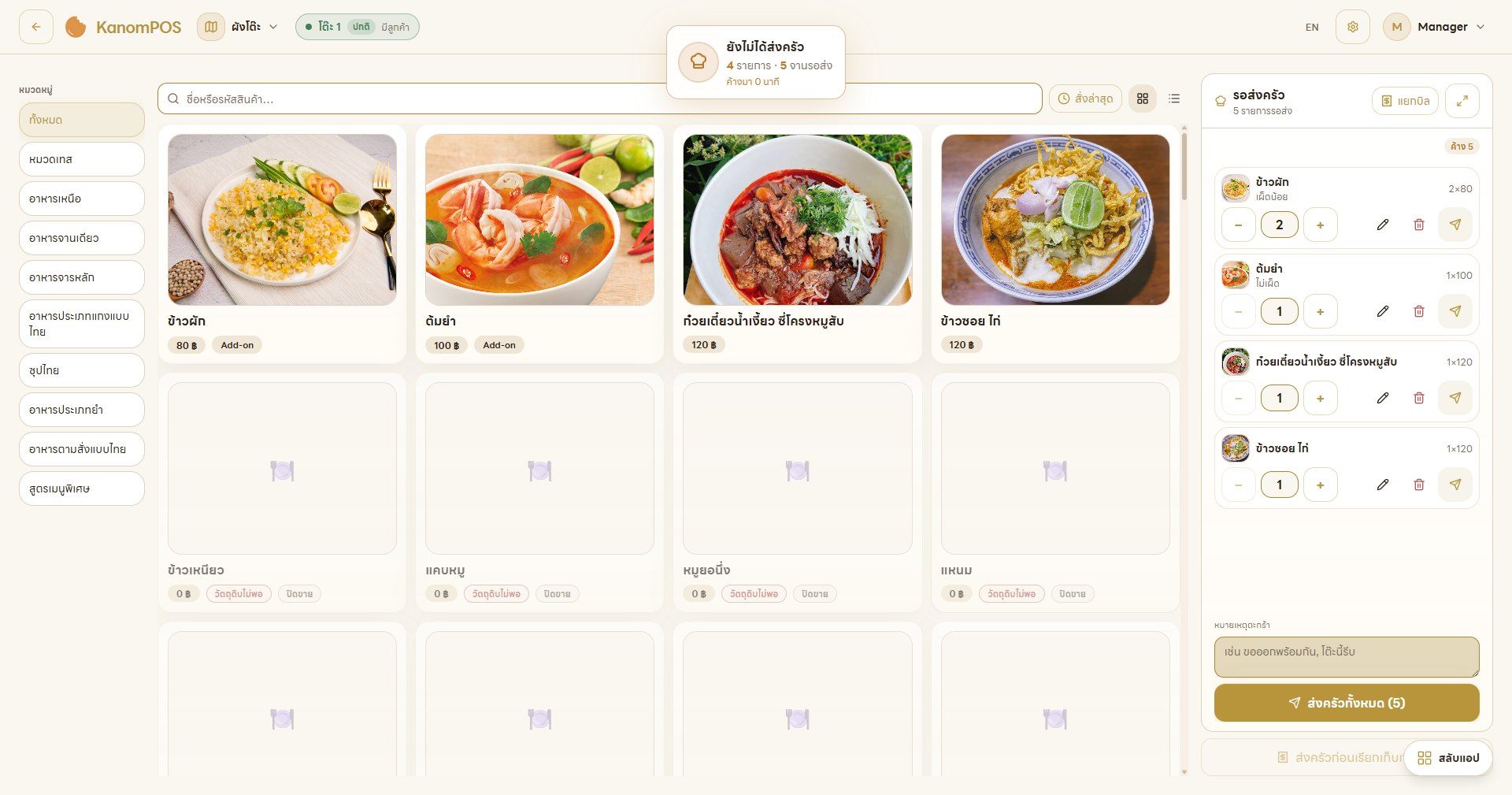


Order flowHow it fits together
One order, all the way through the venue
Follow table 3 in zone B from the moment guests sit down until the revenue lands in your report. Every screen reads the same data — nothing is written twice, nobody walks to the kitchen to repeat it.
- 01 / 04Waiting to fire
Table 3
Zone B · 3 guests · 21:47
Fried rice80.00+ Not spicy
Khao soi, chicken120.00Tom yum100.00+ Mild
3 items300.00Open the table, take the order
The cashier opens the table from the floor plan, guests scan the QR code themselves, or a server takes it on a tablet. Every dish can carry a spice level and a note.
- 02 / 04Cooking
Table 3
ORDDN202609110004 · 21:49
Fried ricex1Khao soi, chickenx1Tom yumx1Cancellable for 0:54
Fire to the kitchen in one tap
The order appears on the Kitchen Monitor immediately. The system flags dishes still waiting to be sent, guests and staff both see preparing or ready, and an order can be cancelled inside a set window.
- 03 / 04Paid
Table 3
Payment · Cash
Amount due300.00Cash received500.00Change200.00
Take payment any way guests pay
Cash, PromptPay QR, credit card, bank transfer, charge to room, or staff tab. The system works out the change, and you can split bills, split payments, and take partial deposits.
- 04 / 04Recorded
Day close
Sales report · Today
Gross Sales✓Service Charge✓VAT✓Ingredient stockUpdatedReports can be exported
Sales and stock land in the back office
The dashboard updates today's revenue, reports break out service charge, VAT and payment channel, and ingredient stock is tied to your recipes — anything running short is flagged on the menu.
WindowsThe cashier station
The cashier sees the whole venue on one screen
From the floor plan to the payment screen, every step is a few taps away. Each member of staff signs in with their own employee code and PIN.
Kanom POSFloor plan
Every table laid out the way the room really is, so you know at a glance which are free, seated, or waiting to be billed.
- Filter by status — free · seated · billing · unsent, with counts
- Restaurant zones, plus separate floors for hotels
- Merge, move and split tables from this screen
- Each table shows its guest count and running total
- A takeaway button for orders not dining in
TabletThe app for servers
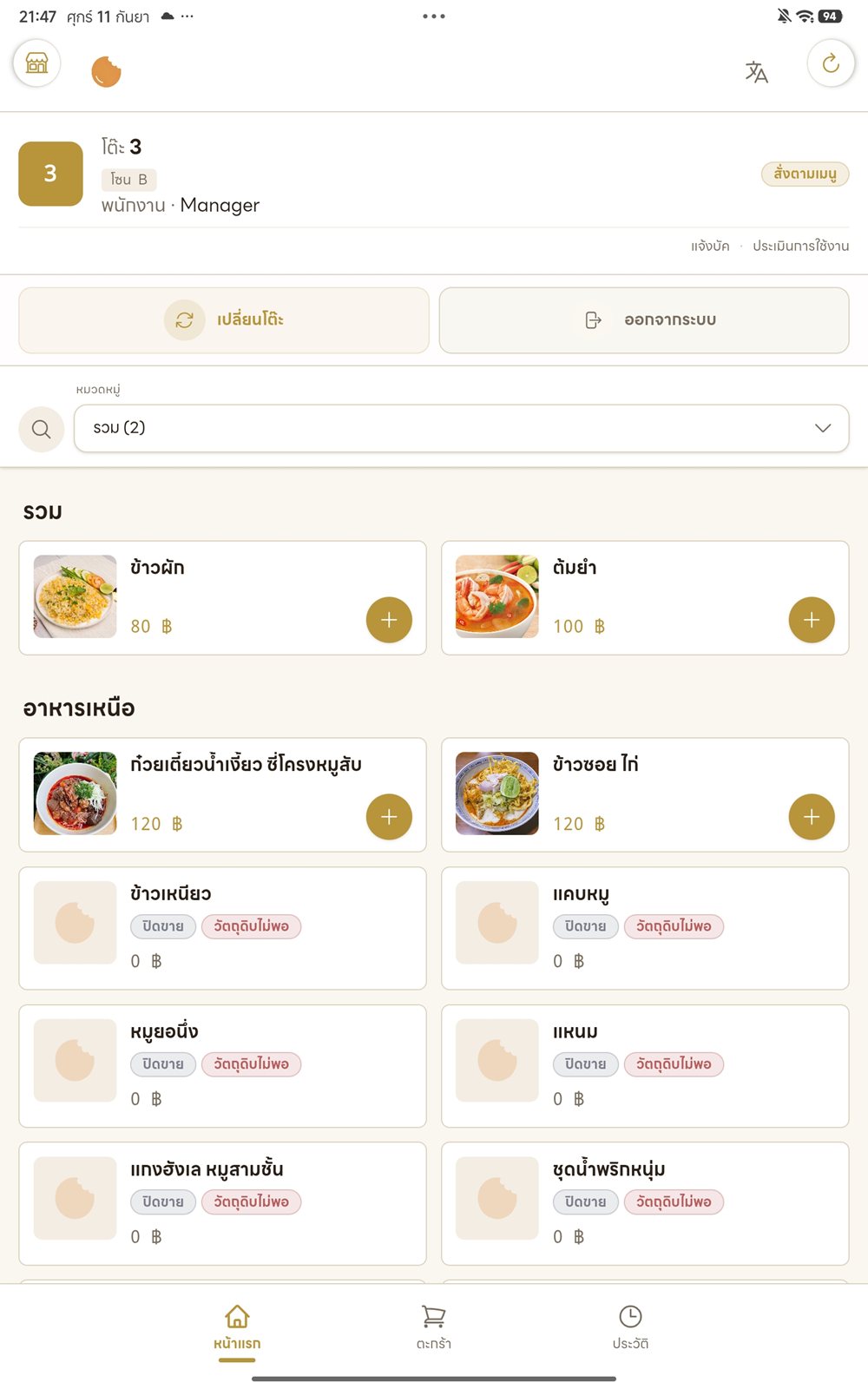
Take the order at the table, not back at the counter
Servers carry a tablet to the table, pick the zone and table, add dishes with their options, and fire to the kitchen right there. The order reaches the cashier and the kitchen at the same moment.
Step 4 of 7 · Choose dishes
QR orderOn the guest's phone
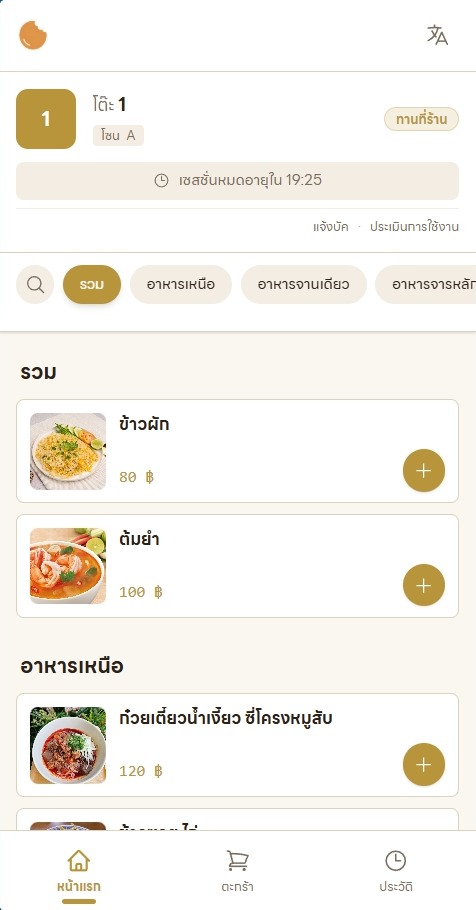
Guests scan a QR code and order for themselves
No app to download — scanning opens that table's menu straight away. The order enters the same system a server would use, so nobody has to stand at the table taking it down.
- QR tied to table and zone
- Sessions expire
- Language switching
- Order status tracking
Scan and see the menu
The system knows which table and zone the guest is at. Categories along the top, or search the menu.
Pick their own options
Spice levels and other options are the same set you configured in the back office, and a note can go to the kitchen.
Review the cart and confirm
Items, options and the total are all visible before the order is confirmed.
Track the status
Guests can see which dishes are cooking and which are ready, and cancel the latest order inside the set window.
Back officeFor owners and managers
A back office that answers: what did we sell, and what's running out?
The back office lives in the same program as the cashier — switch apps instantly to check the dashboard, manage menus, control stock, and pull sales reports for accounting. Beyond the screens shown here, there is a great deal more built in.
Overview
Menu
Stock
Reports
Kanom POSDashboard
An operations control centre that sums up the whole venue on one page — pick a date range, and search across menus, orders, stock and bills.
- Today's sales against yesterday
- Orders open, closed and cancelled, plus tables in use
- Kitchen orders preparing, newly in, and overdue
- Items needing attention, such as ingredients near their minimum
- Menu availability and a stock overview across the property
- Bills voided today
More that isn't pictured here
The screens above are the basics. The live system carries a good deal more — here is a sample.
Book a demo of the full systemSales and orders
- Live orders
- Order history
- Bill history
- Kitchen Monitor
- Room service
Menus and recipes
- Buffet menus
- Set menus
- Recipe / BOM
- Units of measure
- Selling hours
Stock and purchasing
- Goods received
- Suppliers
- Purchase orders
- Stock movement
Venue and team
- Service areas
- Venues and POS points
- Staff management
- Activity log
- System settings
- and plenty more
HardwareFront-of-house equipment
The hardware and the people behind it
Kanom POS brings the software, the POS hardware and the after-sales team together in one place. If a printer or a cash drawer plays up, it is the same team you call.
Touchscreen POS terminal
A touchscreen built for the cashier counter — a full day's work without a mouse.
Receipt printer
Prints receipts and kitchen tickets, wired straight into the system.
Cash drawer
Opens automatically on a cash payment, cutting handling mistakes.
Barcode scanner
Scans products and vouchers quickly at the payment point.
After-salesWhat Kanom POS cares about most
We sell it, then we stay
A POS system only pays for itself if it runs smoothly every day. So the Kanom POS team keeps looking after you after installation — the software, the hardware, and running the venue itself.
“No venue should stop selling because it is waiting on support”
After-sales service
4 commitmentsFor as long as you use it
Support for the system and POS hardware
Advice, health checks and first-line troubleshooting for both the software and the POS hardware, for the whole time you use it — not just the first year.
Monthly
Venue management consulting
Talk through restaurant management problems with the team once a month, again for as long as you use the system.
Remote
Online help and remote support
Whatever you are stuck on, reach the team online or let them remote into the machine — far quicker than waiting for a technician to drive out.
Ongoing
System and feature updates
Steady improvements mean new capability without changing systems.
Looked after from installation day to every day after
01
Installation and setup
The team installs the hardware and the system, and configures the venue ready to sell.
02
On-site training
Cashiers, servers and managers trained on your venue's own screens.
03
Going live
The team tunes the setup to the way your venue works, and comes on site whenever something serious comes up.
04 · For as long as you use it
After-sales care
Real people who keep your venue's history on file and escalate to the development team when it's a system-level problem.
Want to see these screens running on your own menu?
Book the Kanom POS team for a demo, a hardware assessment for your venue, and a quote.
[email protected] · 325/4 หมู่ที่ 16 ตำบลบ้านดู่ อำเภอเมืองเชียงราย จ.เชียงราย 57100